A Shopify store for a coffee roaster: what to set up
A roaster sells a few coffees and has a lot to say about each one. Here is what to set up in Shopify so shoppers can compare coffees and order the right bag, with any theme.
Most roasters sell a short list: a handful of single origins, a house blend, a decaf, maybe a gift box and a subscription. Shoppers read before they buy. They want the origin, the tasting notes, the roast date and the right grind for their brewer. This guide covers the Shopify setup that makes that work. It applies to any Online Store 2.0 theme. The last part shows how our theme, Platter, handles it.
1. One product per coffee, with size and grind as options
Make each coffee one product, and put the choices a shopper makes as options: Size (250 g, 1 kg) and Grind (Whole bean, Filter, Espresso). Each combination becomes a variant with its own price, so a 1 kg bag can cost less per gram than a 250 g bag.
- Put whole bean first. It is the default most roasters want.
- Keep option names and values the same on every coffee. A filter lists each value as you typed it, so “Filter” on one coffee and “Filter grind” on another show up as two choices.
- If you sell in a region that requires it, add a unit price to each variant, such as the price per kilogram. Shopify says all Online Store 2.0 themes can show it.
2. Put the coffee facts in metafields
Origin, altitude, process and tasting notes are the same kind of fact on every coffee. Keep them out of the description and store each one in a product metafield, so the theme can show them in the same place on every page and you can filter by them.
- In Shopify admin, go to Settings, then Metafields and metaobjects (called Custom data on some stores), then Products.
- Click Add definition, name it, and pick a type. Shopify’s guide lists every type.
- Open each coffee and fill the values in the Metafields card.
Useful definitions for a roaster:
- Origin, single line text: “Huila, Colombia”.
- Altitude or Process, single line text: “1,750 m” or “Washed”.
- Tasting notes, single line text: “Red apple, panela, cacao nib”. Three or four notes read better than a paragraph.
- Roast line, single line text: “Roast 118, roasted 3 Oct 2026”. Update it when the batch changes.
- Allergens, a list of single line text, and Contains no allergens, true or false. Most coffee has none, but a “contains nothing” fact is different from a missing one. Our allergen guide explains why.
3. Let shoppers filter by grind and origin
Shopify’s free Search & Discovery app adds filters to collection and search pages. It can filter by a product option, such as Grind, and by product metafields of supported types, including single line text and true or false (Shopify: filters).
- Install Search & Discovery.
- Go to Filters, then Add filter, and choose Grind under product options.
- Add Availability and Price too. A shopper on a budget filters by price first.
Your theme has to support filters for them to show. Most Online Store 2.0 themes do.
4. Offer a subscription
Coffee runs out on a schedule, so a subscription fits. Shopify’s own Subscriptions app, and most subscription apps, sell plans such as “Every 2 weeks, save 10%” through Shopify selling plans. Our subscriptions guide covers the setup, including a roaster’s choice box sold only as a subscription.
5. Say when you roast
Freshness sells coffee. Put your roast and shipping days where every page shows them, such as the announcement bar: “We roast on Tuesdays and Fridays and ship within a day of roasting.” Then keep the roast line on each coffee current.
If you have a café or roastery, turn on local pickup so nearby customers can collect their bags.
6. Brew guides and gift boxes
- Brew guides and recipes belong in a blog, such as “Recipes”. They answer real searches and give you somewhere to link each coffee from.
- A sampler or gift box is one product with its own price, such as three 100 g bags. Add a grind option if you grind to order.
- Goes well with. In Search & Discovery you can pick complementary products for each coffee, such as a filter paper or a second coffee. Your theme needs a complementary products section to show them.
How Platter handles it
Platter is our theme for food and drink brands with a small catalog. Its Market preset runs on the Fernhill Coffee demo store, a fictional roaster with five single origins, a house espresso, a decaf, a tasting trio and a subscription box. The screenshots below come from that store.
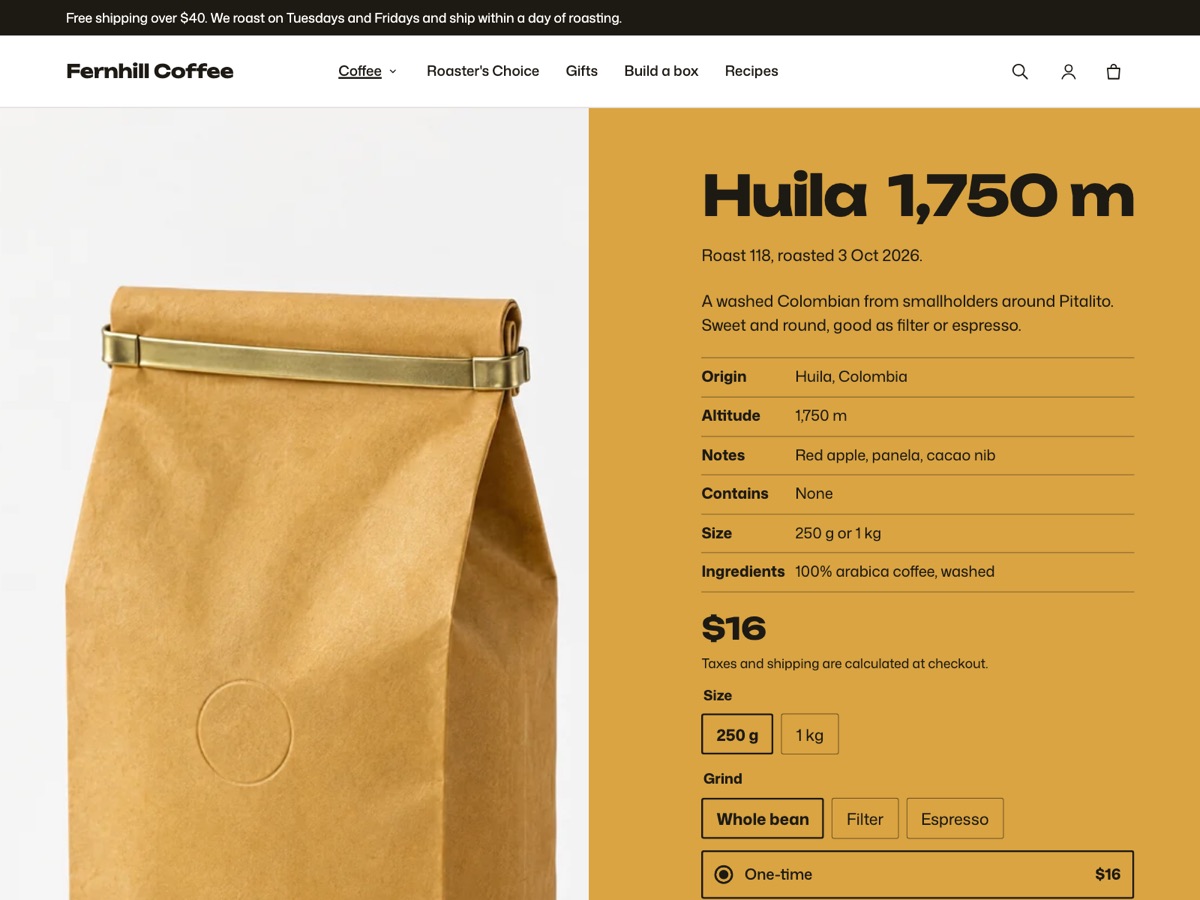
The facts come from metafields, with no app. Platter reads its own product metafields: origin, a headline measure, tasting notes, allergens, size, ingredients, a batch line and a field color. The measure shows large beside the product name. You choose what it means in Theme settings → Food facts → Measure label: Fernhill Coffee calls it Altitude, a chocolate maker might call it Cacao. The batch line shows under the name. Product colors and food facts lists the exact metafield names and types.
Each coffee gets its own color. The field color metafield colors the product’s page, its row in collections and its chip in the menu, so a range of coffees reads as a range.
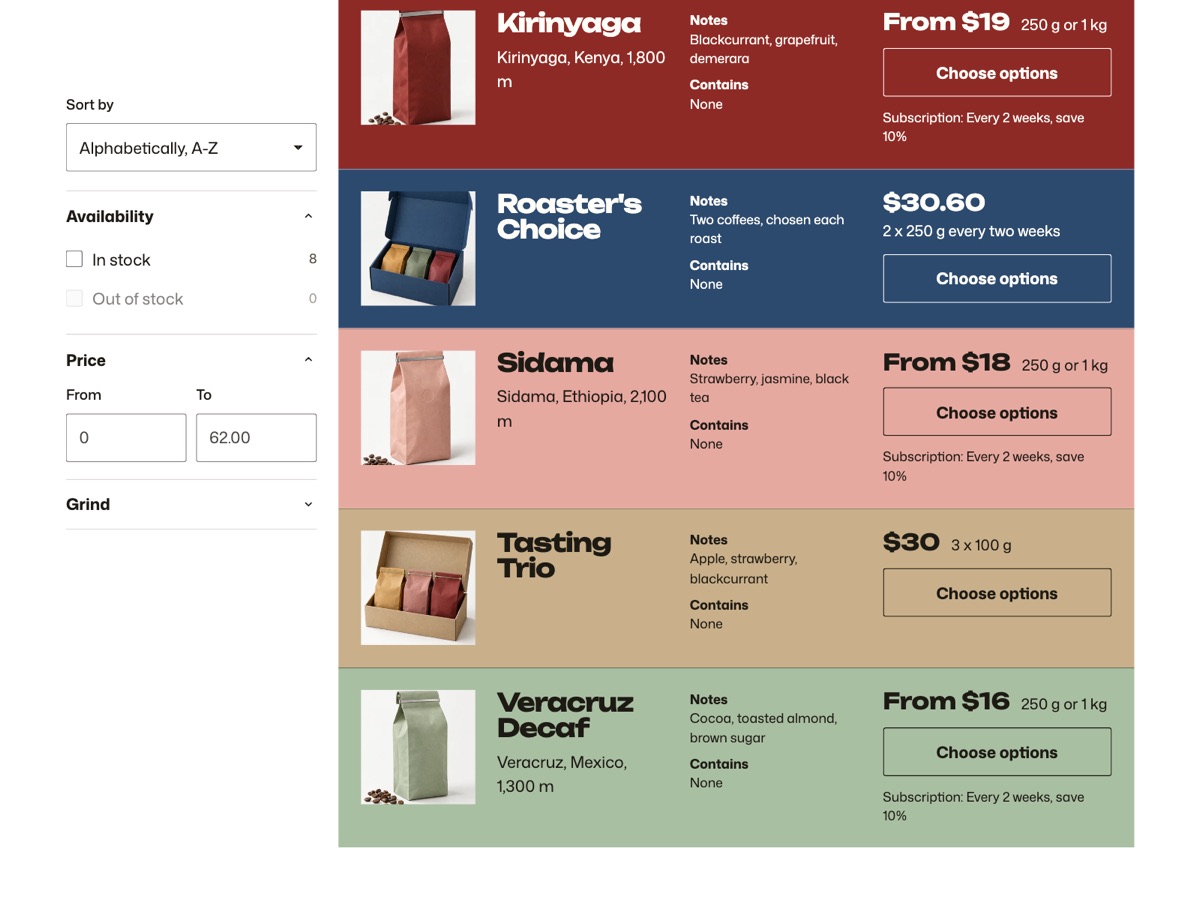
Collections are rows. Each row shows the photo, name, origin, tasting notes, allergens and the price with its size. A coffee that also sells on a plan shows its first plan under the price, such as “Subscription: Every 2 weeks, save 10%”. Platter shows every filter you set up in Search & Discovery, plus a Sort by menu. See Collections and allergen filters.
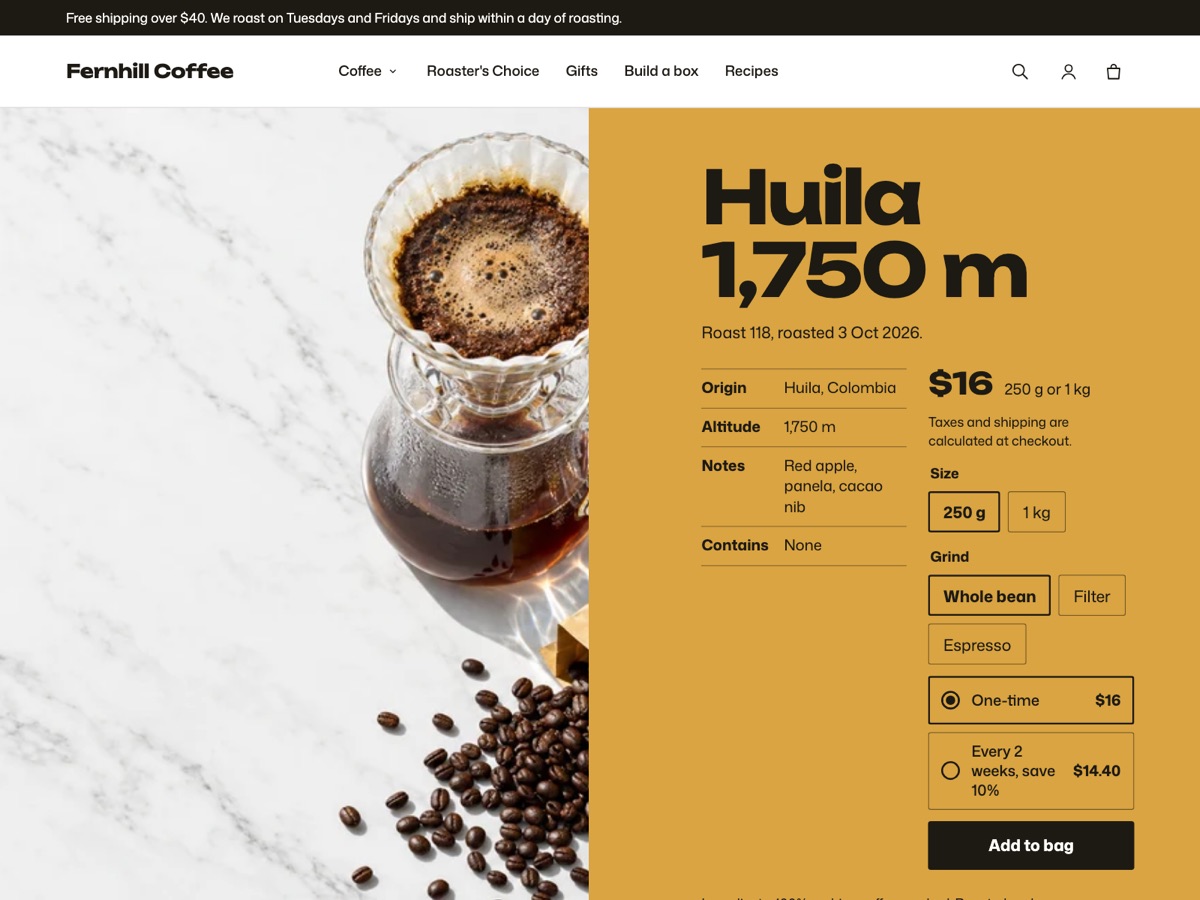
Subscriptions work through Shopify selling plans. A coffee with plans shows One-time and each plan, with its price, under the size and grind. Platter has no subscription settings of its own; the plans come from your app. See Subscriptions in Platter.
More for a roaster:
- A unit price, when you set one, shows beside the price.
- A Kitchen note in Theme settings → Food facts shows on every product page. Fernhill’s reads “Roasted and packed on equipment that also handles nuts.”
- A build-a-box page lets shoppers fill a box with coffees (Build a box).
- Recipes list the products they use, with one button that adds them all to the bag (Recipes).
- When a location offers local pickup, the product page says whether the chosen option can be picked up there.
When Platter is not the right fit
Platter is built for a small range. Each demo store carries eight or nine products, and a collection page shows 6 to 48 rows. If you sell hundreds of coffees, machines and accessories, a theme with a dense product grid will serve you better.
Sources: Shopify Help Center on unit pricing, metafield definitions, Search & Discovery filters, product recommendations and local pickup.