Show allergens and ingredients on a Shopify product page
Shoppers with an allergy read the facts before the price. Here is how to store allergens and ingredients in Shopify so every product page shows them the same way, with any theme.
If you sell food online, allergen information is not only good service. In the UK, food sold online must have its allergen information available before the purchase is completed and again when the food is delivered (UK Food Standards Agency). The UK guidance names 14 allergens; US law names nine major food allergens: milk, eggs, fish, crustacean shellfish, tree nuts, peanuts, wheat, soybeans and sesame (US FDA). Check the rules where you sell. This guide is about the store, not the law: how to set up Shopify so the facts show up clearly and the same way on every product. It applies to any Online Store 2.0 theme. The last part shows how our theme, Platter, handles it.
1. Keep the facts out of the description
A description written by hand drifts. One product says “Contains nuts”, the next says “Allergens: hazelnut”, the third forgets. Store each fact in a product metafield instead. The theme then shows it in the same place on every product, and you can filter by it.
- In Shopify admin, go to Settings, then Metafields and metaobjects (called Custom data on some stores), then Products.
- Click Add definition, name it, and pick a type. For a list, choose the type and then List of values (Shopify: metafield definitions).
- Open each product and fill the values in the Metafields card.
2. The definitions that work
- Allergens: single line text, list of values. One allergen per entry: “Milk”, “Tree nuts”. A list keeps each allergen separate, so a filter can use it.
- Contains no allergens: true or false. Set it to true for products you have checked and that contain none.
- Ingredients: multi-line text, in the order on your label.
- Kitchen note: where cross-contact is possible, say so once for the whole store, such as “Made in a kitchen that also handles milk and tree nuts.” This can be a theme setting or a page section; it does not need a metafield per product.
- Nutrition: multi-line text, one row per line, if your theme can render it as a table.
3. “None” and “unknown” are different
This is the mistake that matters most. A product with an empty allergen field has unknown allergens, not no allergens. If your theme prints “Contains: None” whenever the field is empty, a product you forgot to fill in tells an allergic shopper it is safe.
That is why the setup above has a separate true or false field. Show “Contains: None” only when it is true. When both fields are empty, show nothing, and fix the product.
4. Write allergens the same way every time
Write each allergen as text, never only as a color or an icon. Pick one spelling and use it everywhere. A filter lists each value exactly as you typed it, so “Milk” and “milk” become two choices.
5. Add an allergen filter
Shopify’s free Search & Discovery app can turn the Allergens metafield into a filter on collection and search pages. It supports single line text lists and true or false metafields as filters (Shopify: filters).
- Install Search & Discovery.
- Go to Filters, then Add filter, and choose the Allergens product metafield.
- Save. Your theme has to support filters for it to show.
Know what the filter does: ticking “peanuts” shows the products that contain peanuts. It does not hide them. If your shoppers mostly want to exclude an allergen, add a second list metafield, such as Free from, fill it only for products you have checked, and add a filter for that too.
How Platter handles it
Platter is our theme for food and drink brands with a small catalog. It reads allergens, ingredients and nutrition from its own product metafields, with no app. The screenshots come from the Hollis Chocolate and Low Ember demo stores.
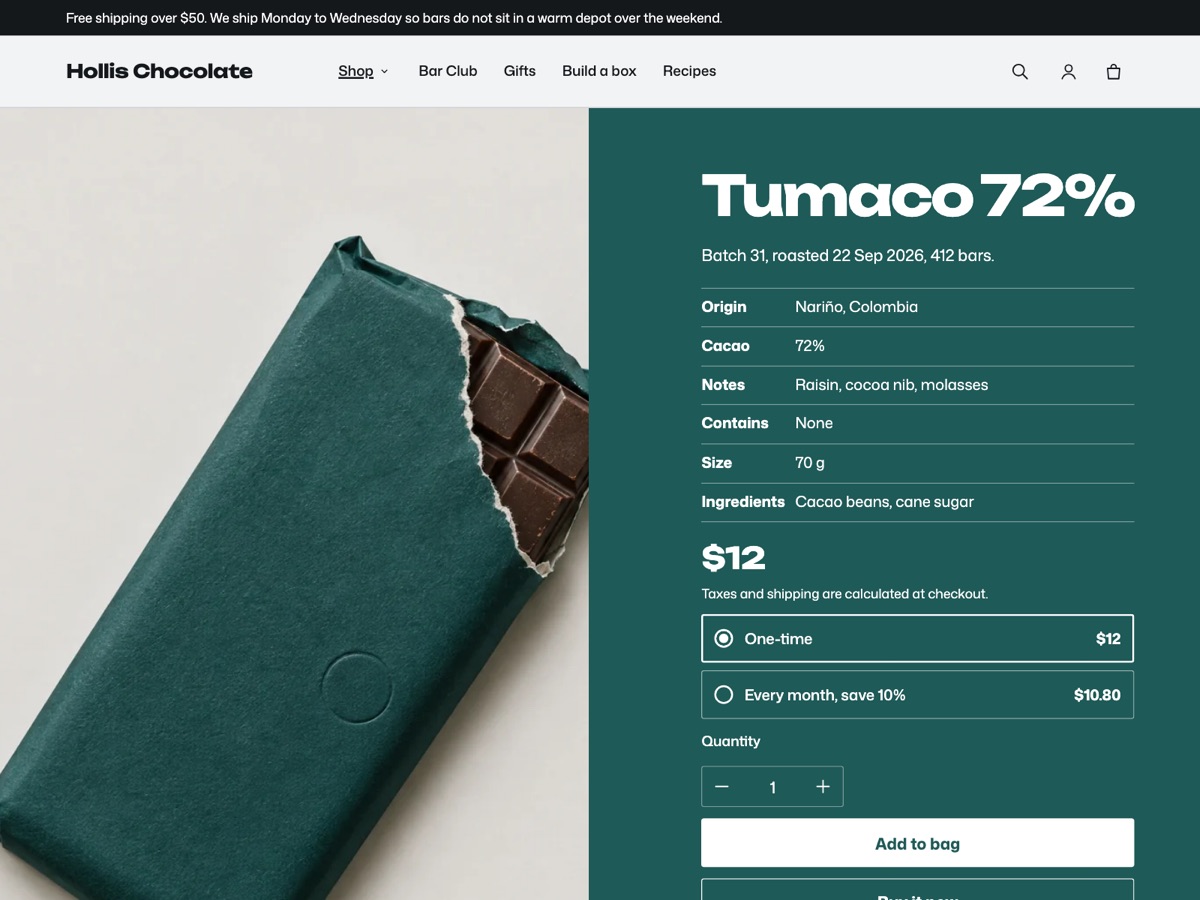
The facts list sits next to the price, on the product page: origin, a headline measure, tasting notes, allergens, size and ingredients. Rows that have no value are left out.
Allergens are text. Platter labels them “Contains”, joins them with commas, and starts the list with a capital letter, so “Milk, Tree nuts” reads “Contains: Milk, tree nuts”. They also show in collection and search rows and in recipe product lists.
“Contains: None” only when you say so. Platter shows it only when the product’s Contains no allergens field is true. When both fields are empty, the row is left out. We fixed exactly this bug in Platter’s recipe lists, which used to print “None” for missing data.
A kitchen note on every product page. Set it once in Theme settings → Food facts → Kitchen note. On the Low Ember demo store it reads “Made in a kitchen that also handles peanuts, soy, wheat and sesame.”
Nutrition as a table. Write one row per line in the Nutrition metafield, as a label, a colon and a value, such as “Fat: 41 g”. Lines without a colon become notes above or below the table.
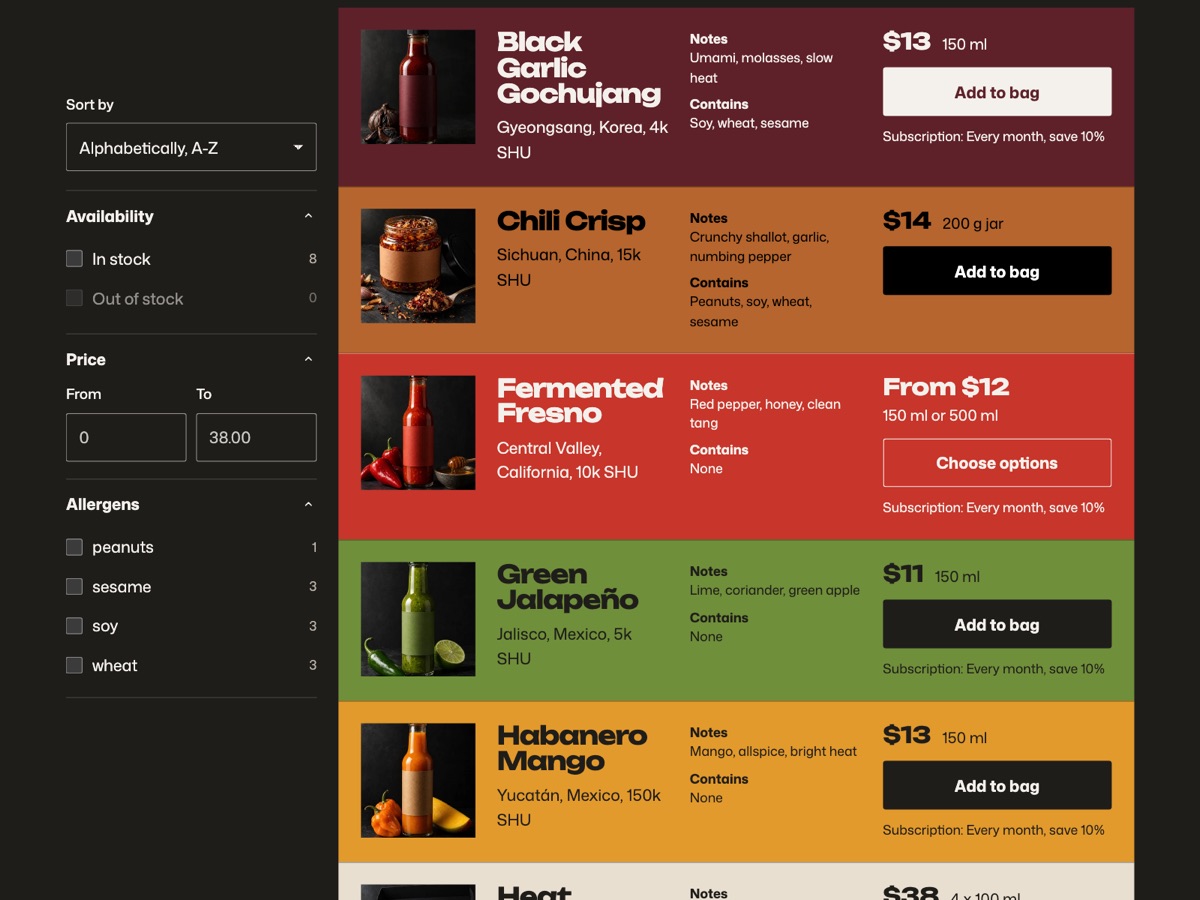
The allergen filter is the Search & Discovery filter from step 5. Platter shows every filter you set up, plus a Sort by menu, and folds the panel behind a Filter and sort button on phones and tablets.
The exact metafield names and types are in Product colors and food facts, and the filter steps in Collections and allergen filters. Platter reads its metafields in the platter namespace, so use the names in those guides rather than your own.
Sources: UK Food Standards Agency, allergen guidance for food businesses; US FDA, food allergies; Shopify Help Center on metafield definitions and Search & Discovery filters.