A shoppable lookbook with hotspots on Shopify
A campaign photo sells the mood, but shoppers still ask what the model is wearing. Here is how to turn a lookbook into something they can shop from, with any theme.
A lookbook is the part of a fashion store that looks most like the label: the campaign, the location, the styling. The problem is the gap between the photo and the product. A shopper sees a coat they want, then has to hunt for it in a collection. Hotspots close that gap: a numbered pin on the coat opens the coat. This guide covers what to shoot, how to prepare the images in Shopify, and how to place hotspots with any theme. The last part shows how our theme, Reel, handles it.
1. Shoot for the hotspots
Plan the lookbook as a set, not a pile of the best frames.
- Two or three pieces per photo. Each piece you want to sell needs a clear, visible part of the photo to pin. A full outfit in shadow sells nothing.
- Mix shapes. A wide landscape shot next to two portrait shots gives the page rhythm. All portraits read like a product grid.
- Leave space around the subject. Themes crop images to fit their layout, and phones crop harder. A subject in the middle third survives most crops.
- Name every piece as you shoot. Write down which products appear in each frame. You will need the list when you place the pins.
2. Prepare the images in Shopify
- Size. For product images, Shopify accepts up to 5000 x 5000 px or 25 megapixels, under 20 MB (Shopify: image requirements). A lookbook image rarely needs more than 2000 to 2500 px on its long side. Larger files slow the page for no visible gain.
- Focal point. Open the image in Content, then Files, or from the theme editor, and drag the blue dot onto the subject. Themes that support focal points keep that spot in frame when they crop. There is one focal point per image, and it applies everywhere you use the image (Shopify: focal points).
- Alt text. Describe what is in the photo, such as “Two people on a harbor wall in a black puffer and an olive waxed coat.” Shopify’s media editor and theme editor both have an alt text field (Shopify: alt text). Screen reader users and search engines both read it.
3. Pick a way to make the photos shoppable
There are three common ways, from simplest to most work:
- A caption with links. Under each photo, name the pieces and link them. Any theme can do it with a rich text block. It works, but the shopper has to match words to the photo.
- A theme section with hotspots. Many fashion themes include a lookbook or “shop the look” section where you pick a product for each pin. No app, and the section loads with the page.
- An app. Shoppable image apps add hotspots to themes that have none. Check what the app adds to every page load before you install it.
4. Place the hotspots
- One pin per piece, on the piece. Put the pin on the coat, not on a face, and not on the edge of the frame, where the card may be cut off.
- Three pins at most. More pins turn a photo into a diagram. If a photo shows five products, pin the two that matter and link a collection for the rest.
- Link the right thing. Link a single piece to its product. Link a group, such as all the jewelry in a shot, to a collection.
- Check on a phone. Pins have to be large enough to tap, and the card they open has to fit on a narrow screen. Open the page on your own phone before you publish.
5. Finish the look on the product page
A shopper who taps through to the coat should see what goes with it. Shopify’s free Search & Discovery app lets you choose complementary products for each product, such as the trousers and boots from the same look (Shopify: product recommendations). Your theme needs a complementary products block or section to show them.
How Reel handles it
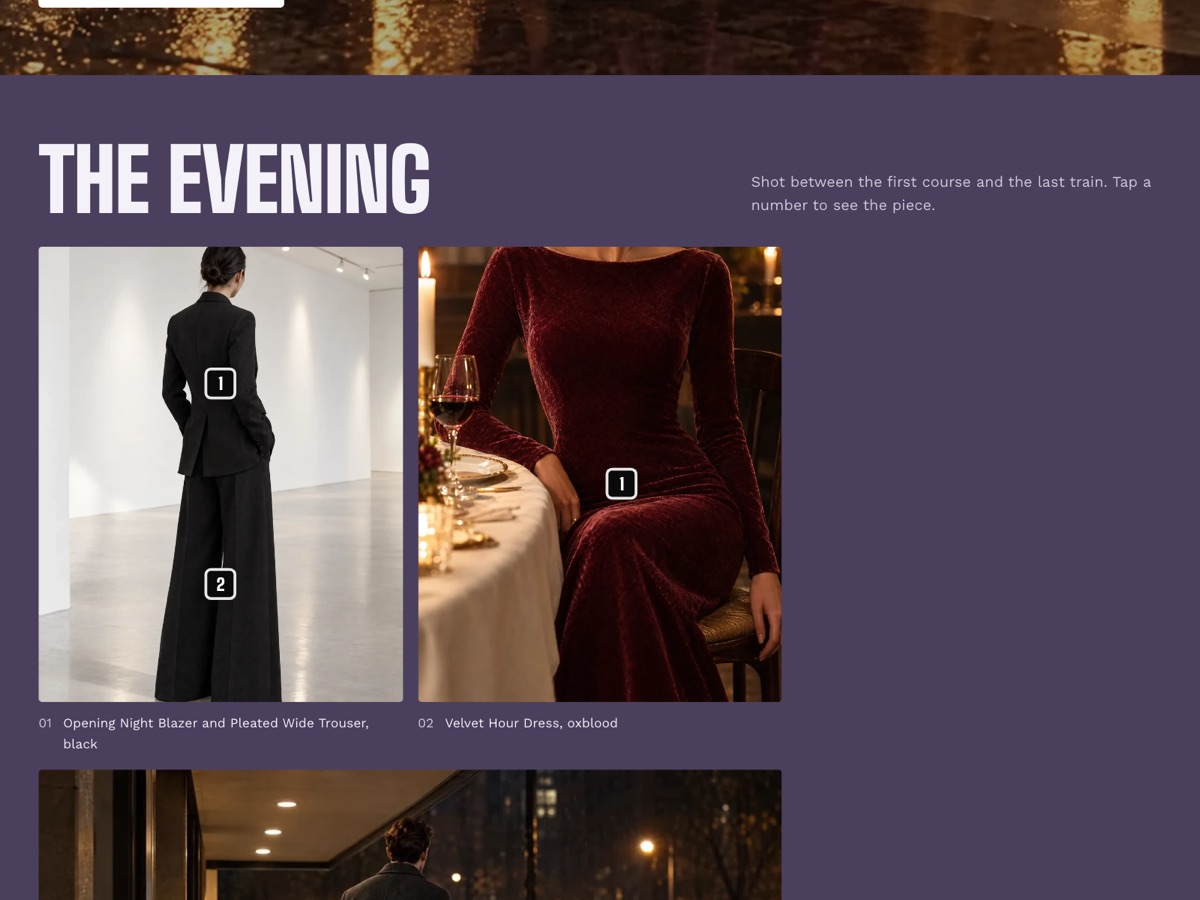
Reel is our theme for fashion labels. Its Lookbook section is a grid of campaign images, and each image can carry up to three numbered hotspots. Every Reel preset uses one on its home page. The screenshots come from the SQUALL and NINTH HOUR demo stores.
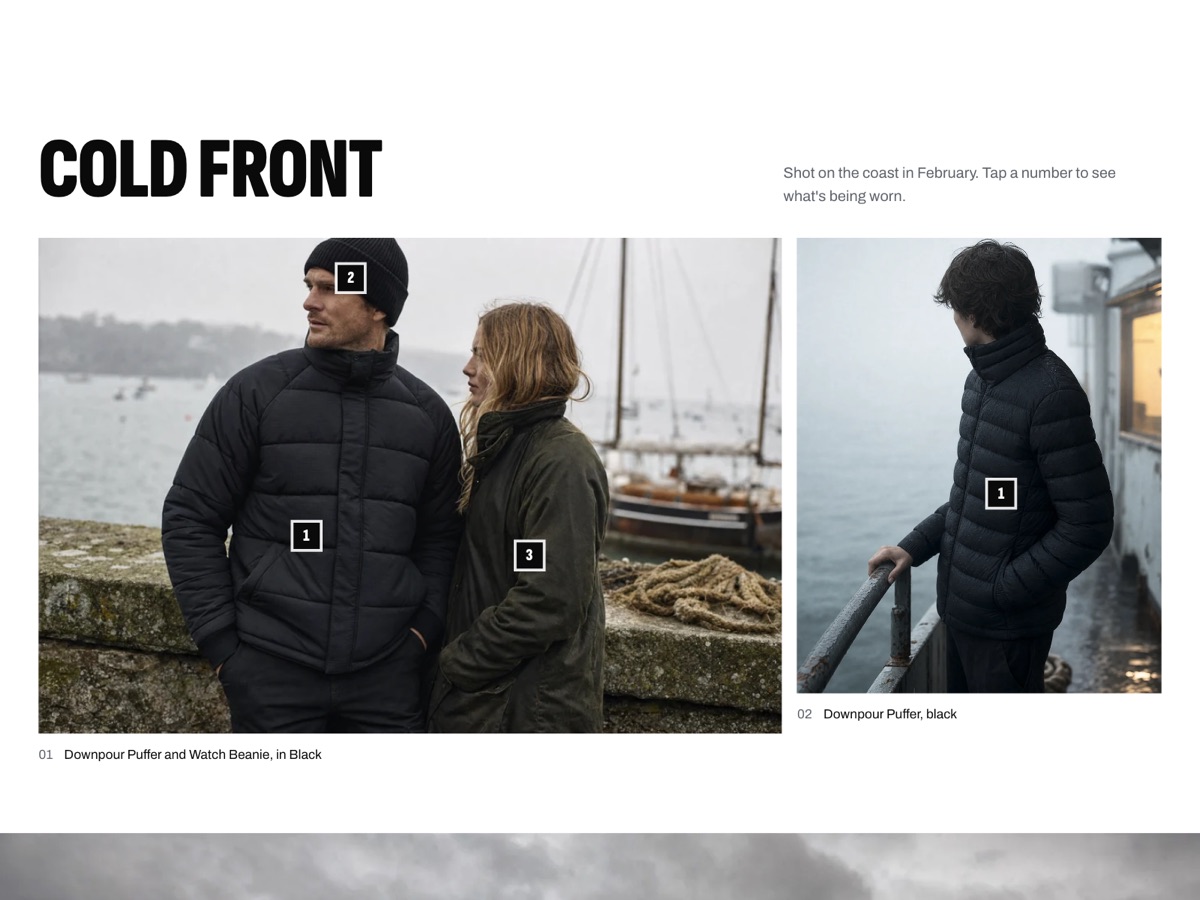
Each look is one block. Add a Look block per image, pick the image and a shape (Portrait, Tall, Square or Landscape), and tick Span two columns to make a look twice as wide on larger screens. Set Columns on desktop from 2 to 6. On phones every look takes the full width. A caption under the image gets a number, 01, 02 and so on. Reel uses the focal point you set on the image when it crops.
Hotspots are picked, not coded. Each look has three hotspot groups. In each, pick a Product or a Collection (if you pick both, the product wins) and move the pin with the Across and Down sliders, both percentages of the image. A hotspot with nothing picked does not show. In SQUALL’s first look, pins 1 and 2 open the puffer and the beanie, and pin 3 opens the whole Outerwear collection.
The card adds to the bag. A product pin opens a card with the product’s image, title and price. If the product is available and quick add is on, the card has an Add to bag button that opens quick add, so the shopper picks a size without leaving the lookbook. A collection pin opens a card with the collection’s image, title and number of products. Quick add is one switch for the whole theme: Theme settings, then Product cards, then Enable quick add.
Built for phones and keyboards. Each pin has a 44 px tap area. Only one card is open at a time. A card opens away from the nearest edge, and on a narrow screen it slides sideways to stay inside the page. Each pin is a real control that screen readers announce by the product or collection name, and Escape closes the open card and returns focus to its pin.
Complete the look on the product page. Reel’s product page has a Complementary products block, headed “Wear it with” in the default template, that shows the complementary products you choose in Search & Discovery.
Lookbook hotspots has every setting. The rest of the home page sections are in Reel’s home page.
When Reel is not the right fit
Reel’s lookbook is a grid of still images with up to three pins each. It is not a slider, it does not pin products on videos, and you place pins with sliders, not by dragging them on the photo. If your lookbook is a long scrolling story with many products per frame, a dedicated lookbook app or a page builder gives you more control.
Sources: Shopify Help Center on image requirements, focal points, alt text and product recommendations.