Run a product drop with a countdown on Shopify
A drop works when the date is real and the store is ready at that minute. Here is how to plan a product drop on Shopify, from the first teaser to the sold-out badge, with any theme.
A drop is a small collection released at a fixed time, usually announced in advance and often in limited numbers. It suits labels that work in seasons or small runs: the date gives people a reason to come back, and a short run gives them a reason not to wait. The work is mostly in Shopify, not in the theme: scheduling the products, building a list, and making sure stock and checkout hold up. This guide covers that setup with any Online Store 2.0 theme. The last part shows how our theme, Reel, handles it.
1. Pick a real date, and keep it
Choose the date and time, then treat it as a promise. A countdown that resets when it reaches zero, or a “drop” that never closes, teaches shoppers to ignore your dates. Pick a time when your audience is awake, and when you can watch the store and answer messages for the first hour.
Before you set any times, check the time zone under Settings, then General, then Store defaults. Shopify uses it for scheduled publishing (Shopify: future publishing).
2. Schedule the products, don’t flip them by hand
Shopify can publish products and collections at a future date and time on its own.
- Create the drop’s products, and set their status to Active. Shopify only publishes Active products on schedule; a product still in Draft at the scheduled time stays hidden.
- On each product, in the Publishing section, click the calendar icon next to Online Store, pick the date and time, click Schedule publishing, then Save.
- Schedule the drop’s collection the same way, so the collection page opens with its products.
Two limits from Shopify’s guide: you can’t schedule single variants, and future publishing does not work for the Shop app. Test the setup once with a dummy product and a time ten minutes away.
On Shopify Plus, the Launchpad app can schedule a whole drop as one event, including price changes and theme changes. On other plans, scheduled publishing does the core job.
3. Build a list before the drop
The people who buy in the first hour are the people you told. Collect emails before the date:
- A sign-up form on the home page and on every drop page, with a clear promise: “One email when Drop 08 opens.”
- The password page, if the whole store is closed. In private mode, every page of your store is hidden behind a landing page, and Shopify’s default password page includes an email sign-up section (Shopify: password page). Use it for a brand launch, not for a single drop on a store that is already selling.
A theme’s built-in sign-up form usually uses Shopify’s customer form. It creates a customer with the email and records that they accept email marketing (Shopify: email consent), so the list lives in Shopify, ready for your email tool.
4. Add a countdown that tells the truth
A countdown helps when it counts to the real launch time and then changes to “the drop is open”. It hurts when it is fake. Before you add one, check what your theme’s countdown does:
- Does it count to a fixed date, or restart for each visitor? A per-visitor timer is a sales trick, and shoppers can tell.
- What happens at zero? The best case: it switches by itself to a “live” message with a link to the drop, with no reload.
- What happens with no date, or after you forget to update it? It should hide, not show 00:00:00 for a month.
- Does it lock anything? Most countdowns only change what the section shows. Products are hidden or shown by publishing (step 2), not by the timer.
Put the countdown where the drop is announced: the top of the home page, or under the lookbook for the drop.
5. Make stock and checkout hold up
- Track quantity, and stop at zero. Turn on Track quantity for every variant and leave Continue selling when out of stock off. Then a variant at zero can’t be added to the cart (Shopify: inventory setup).
- Show low stock honestly. “3 left” is useful when it is true. Let the theme read it from Shopify’s inventory; never type it into the description.
- Show sold out clearly. A sold-out piece should say so on its product card and its button, so shoppers stop trying.
- Bots. High-demand drops attract checkout bots. Shopify’s checkout bot protection is available on Shopify Plus only. On other plans, a small run and a fixed time are your main defense.
6. After the drop
Change the home page within a day. Move the drop’s campaign into a lookbook, put the next date or the main collection back at the top, and remove or update the countdown. Then email the list once more: what sold out, what is left, and when the next drop is.
How Reel handles it
Reel is our theme for fashion labels with seasonal drops. It has a Drop countdown section, a hero that sets the drop’s name in large moving type, and stock lines that come from Shopify’s inventory. The screenshots come from the SQUALL and NINTH HOUR demo stores.
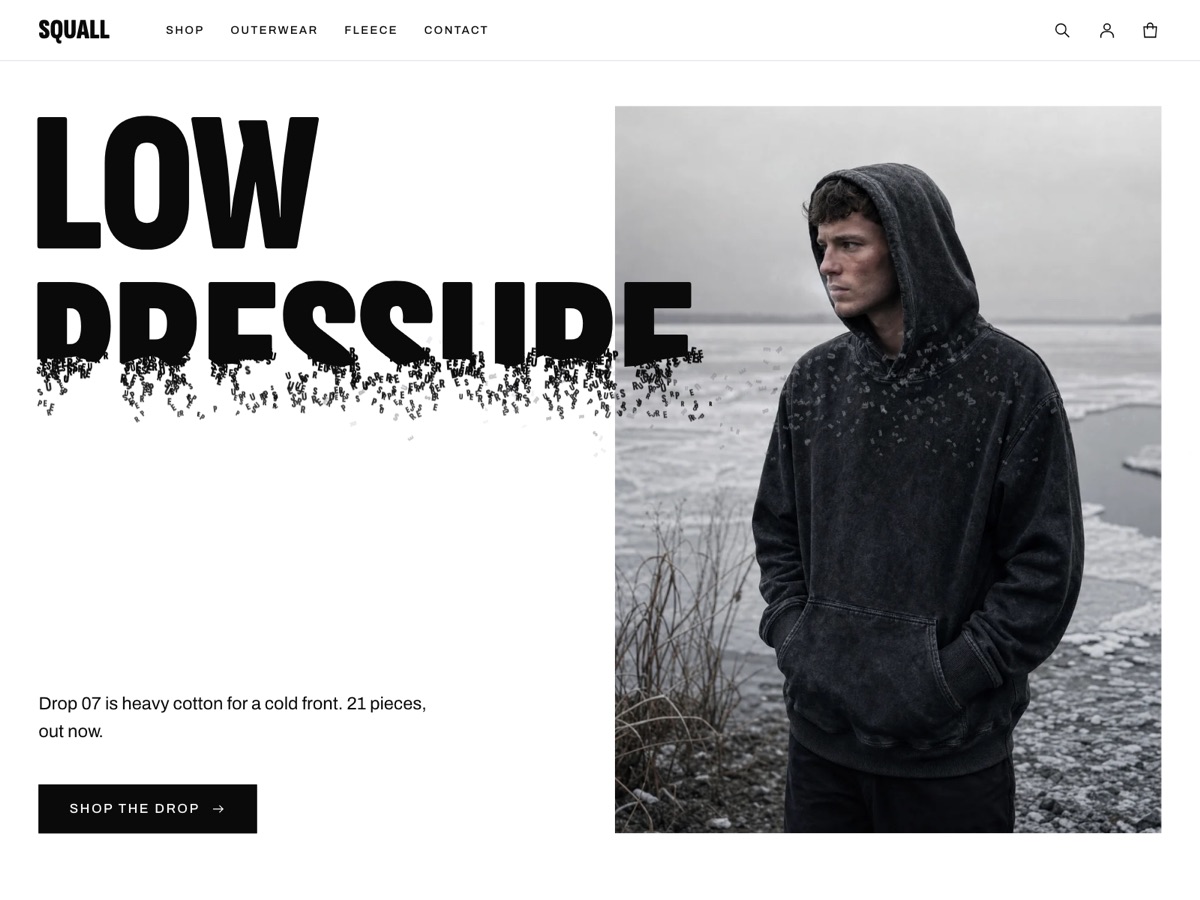
The drop name as the headline. Reel’s hero takes one to three short lines of Words, a Sentence and a link. The last line drifts away like weather over the campaign image. For shoppers who ask for reduced motion, or when you set Theme settings, then Motion, to Subtle or Off, the type rests as a still frame.
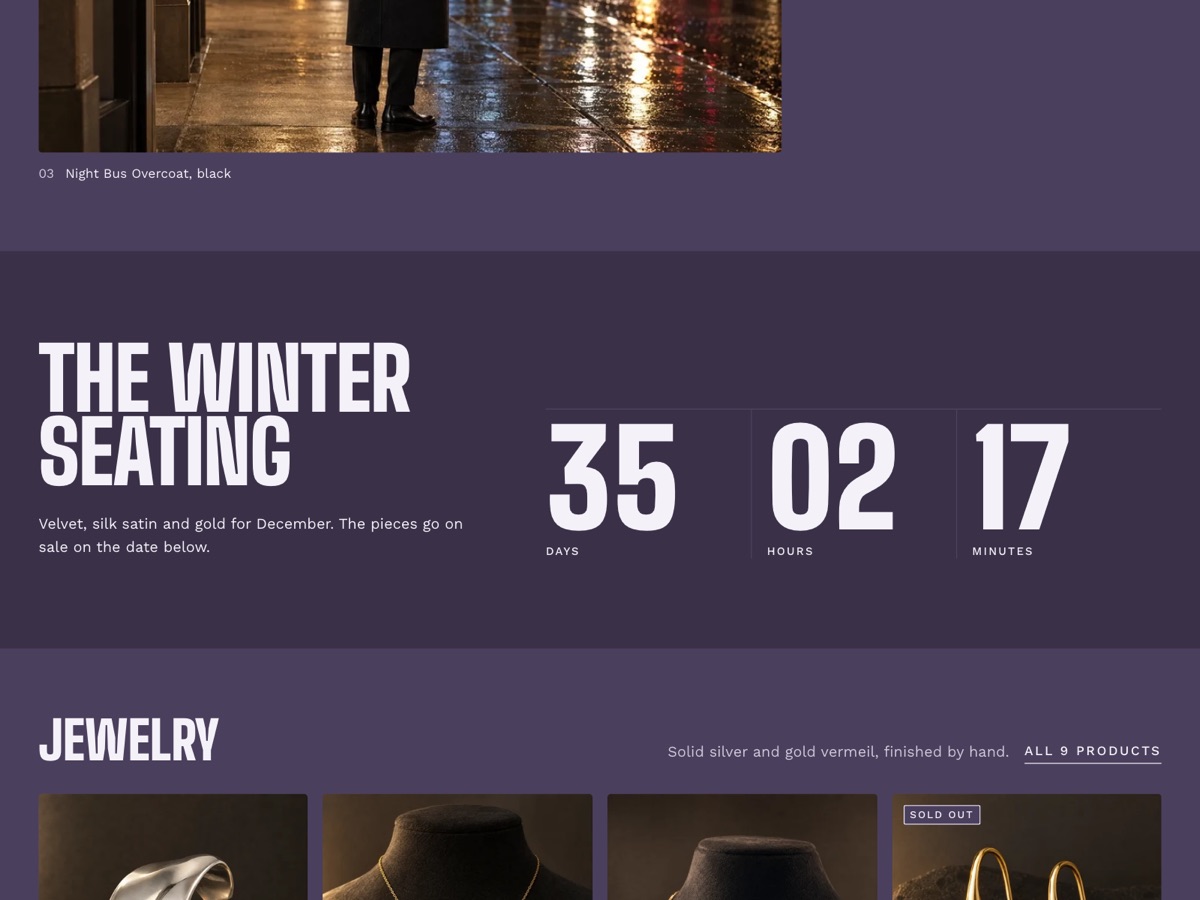
A countdown to a fixed date. Add the Drop countdown section and type the launch time in Drop date and time, such as 2026-11-20 18:00 -0500: the date, the time on a 24-hour clock, and your offset from UTC. The clock shows days, hours and minutes, with no seconds, and updates once a minute. The page arrives with the numbers filled in, and a small script keeps them correct on cached pages.
It switches at zero. At the launch time, the clock and the “before” text disappear, and the After the drop text and button take their place, with no reload. The button shows only after the drop. Leave its link empty to send shoppers to all products, or link the drop’s collection; NINTH HOUR’s links to its jewelry.
No fake urgency. With no date, or a date Reel can’t read, the section stays hidden on your live store. In the theme editor it counts to a sample date nine days ahead, so you can see the layout. The countdown never moves its own end date. It also does not hide or lock products: schedule them as in step 2. Count down to a drop has every setting.
A list for the next drop. Reel’s Newsletter section, its footer sign-up and its password page all use Shopify’s customer form and tag each sign-up “newsletter”. The password page sets its heading in the same moving type, shows your store’s password message, and has a Notify me button.
Stock that tells the truth. The Inventory block on the product page shows “3 left” when a variant tracked by Shopify falls below a number you choose, from 1 to 20, and “In stock” above it. Sold-out products get a Sold out badge on their cards, and the Add to bag button reads Sold out. A sold-out size stays visible with a line across it.
When Reel is not the right fit
Reel shows a drop; it does not run one. It has no queue, no raffle, no per-customer purchase limit and no early access for a list. If your drops sell out in seconds to thousands of people, you need Shopify Plus tools or a drop app, whatever theme you use.
Sources: Shopify Help Center on future publishing, Launchpad, the password page, inventory setup and bot protection; Shopify developer docs on email consent.