Add a size guide to Shopify product pages
A shopper who can't tell an M from an L either guesses or leaves. Here is how to put the right measurements on every product page in Shopify, with any theme.
A size guide answers one question at the moment of choosing: which size fits me? It works best next to the size buttons, written for the product the shopper is looking at, not as a generic chart in the footer. This guide covers the Shopify setup with any Online Store 2.0 theme: where to store the guide, how to handle tables, and what to measure. The last part shows how our theme, Reel, handles it.
1. Decide: one guide, or one per product
Most fashion labels need more than one guide. Tops, trousers and shoes are measured differently, and a boxy hoodie fits differently from a slim shirt. Pick the simplest setup that is true for your range:
- One guide for the whole store: fine if you sell one kind of garment in one fit.
- One guide per product type: tops, bottoms, shoes. Usually the right answer.
- One guide per product: for a label whose cuts vary a lot from piece to piece.
Whatever you choose, keep the size names on the guide the same as the option values on your products. If the guide says “Medium” and the button says “M”, shoppers have to translate.
2. Store the guide in a product metafield
Keep the guide out of the product description. A metafield holds it as its own field, so the theme can show it in the same place on every product.
- In Shopify admin, go to Settings, then Metafields and metaobjects (called Custom data on some stores), then Products.
- Click Add definition. Name it “Size guide” and choose the type Rich text (Shopify: metafield definitions).
- Open each product and write its guide in the Metafields card.
Rich text keeps headings, bold text and lists. Shopify’s developer docs list the parts a rich text metafield can hold: paragraphs, headings, links and lists (Shopify: metafield types). Tables are not on that list. A short list reads well on a phone anyway:
- XS: chest 88 cm, length 66 cm
- S: chest 94 cm, length 68 cm
- M: chest 100 cm, length 70 cm
To show the metafield, connect it to a text or rich text setting in the theme editor with the dynamic source icon. Which settings accept a metafield depends on your theme (Shopify: showing metafields).
3. Use a page when you need a table
A full measurement table with several columns needs a table, and the rich text editor for pages and product descriptions can insert one (Shopify: rich text editor).
- Go to Online Store, then Pages, and create a page such as “Size guide: trousers”.
- Insert the table: one row per size, one column per measurement.
- Show the page on your product pages. If your theme has a size guide or collapsible row block with a page setting, pick the page there.
For a different page per product type, add a product metafield of the type Page (a page reference) and connect it to that setting. Shopify’s page reference type links a product to one of your pages (Shopify: metafield types).
Wide tables are hard to read on a phone. Keep to the measurements that decide the size, usually three or four columns.
4. Say what you measured
The numbers mean nothing unless the shopper knows what they are. Each guide should say:
- Body or garment. “Chest 100 cm” on the body and on a shirt laid flat are very different numbers.
- How you measured. “Chest measured across, laid flat, then doubled.”
- The fit. “Regular fit, take your usual size” or “Cut boxy, size down for a closer fit.”
- Units. If you sell across borders, give centimeters and inches, or say which one you use.
5. Make sizes easy to pick and filter
- Same option name and values everywhere. Call the option Size on every product and use the same values (XS to XL, or 28 to 36). Shopify’s free Search & Discovery app can then add a Size filter to collection pages, built from that product option (Shopify: filters).
- Track stock per size. Turn on Track quantity for each variant, so a sold-out size can’t be added to the cart (Shopify: inventory setup). Check that your theme marks a sold-out size on its button, not only after the shopper clicks.
- Care with the guide. Care instructions answer the next question (“will it shrink?”). Store them the same way, in their own rich text metafield.
How Reel handles it
Reel is our theme for fashion labels. Its product page has a Size guide row and a Care row that fold open under the description, and both are wired to product metafields in the default product template. The screenshot comes from the FIRST LIGHT demo store, which runs the Reel Haze preset.
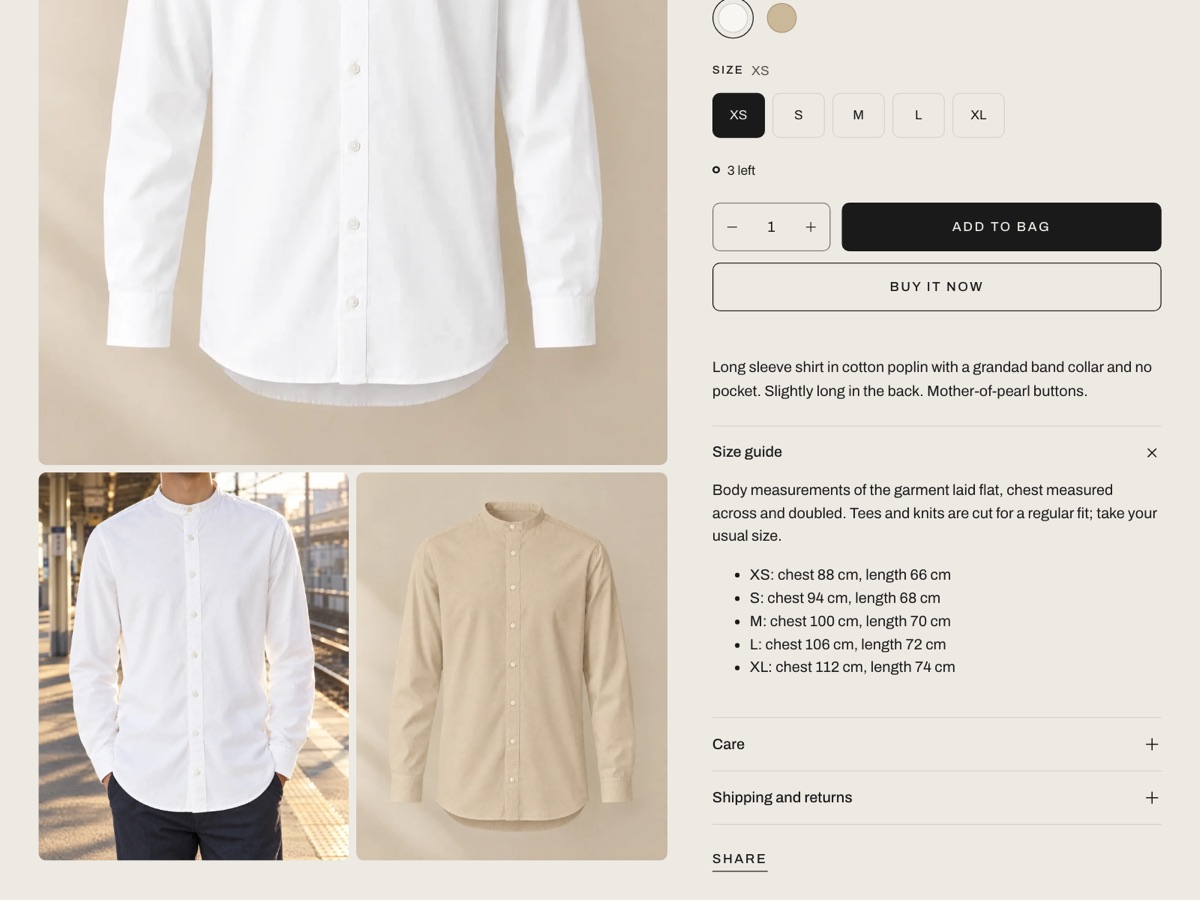
One guide per product, with no app. The default product template connects the Size guide block to the metafield custom.size_guide and the Care row to custom.care, both of the type Rich text. Create the two definitions with those exact keys, fill them in on each product, and the rows appear. A product with an empty metafield shows no row. Size guide and care has every step.
A page for tables. The Size guide block has an Or use a page setting. Reel shows the page when the product’s metafield is empty, so you can give most products a shared table page and a few products their own text. To pick a page per product, connect a page reference metafield to that setting. Tables inside the guide use even-width numbers, and a wide table scrolls sideways on a phone instead of breaking the page.
One guide for everything. If all your products share a guide, remove the connected metafield from the block and type the guide in the block itself, or pick one page.
Sizes as buttons. In the default product template, sizes show as buttons, and options named Color, Colour or Colorway show as swatches. A sold-out size stays visible with a diagonal line across its button, and screen readers hear “sold out” with the size. The Inventory block can show a “3 left” line when stock falls below a number you set, from 1 to 20, for variants where Shopify tracks the quantity.
More rows. Add Collapsible row blocks for fabric, fit notes or shipping. Each takes text, a connected metafield or a page. A row can hide itself on products that don’t ship, such as gift cards.
When Reel is not the right fit
Reel’s size guide is a row of text or a table that you write. It has no fit quiz, no size recommendation from the shopper’s height and weight, and no centimeter and inch switch. If your returns come mostly from fit, a sizing app that recommends a size will do more than any theme row.
Sources: Shopify Help Center on metafield definitions, metafield types, showing metafields, the rich text editor, Search & Discovery filters and inventory setup; Shopify developer docs on metafield data types.